Generate Exports
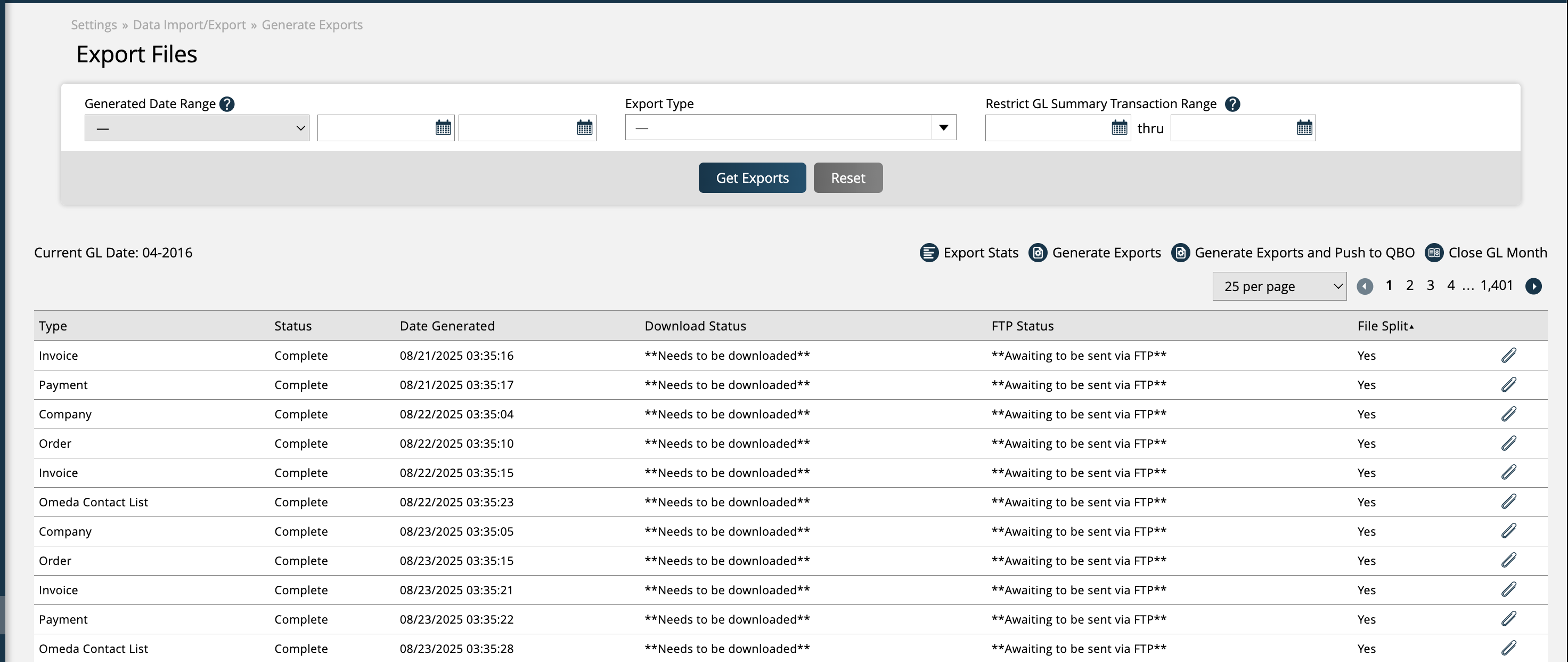
The Generate Exports page, found by going to Settings > Data Import/Export > Generate Exports, is where you can manually generate export files, push items to your financial systems, as well as close and lock your financial periods.
To access the page, you need the User Permission 'Export Generation & History'. To push export items to a financial system such as QBO or Xero, you will also need the sub-permission for QBO or Xero exports.
There are basic search filters to narrow down the results and find items that have already been exported, including export file type and date range.
Each record in the table for exported items shows the export type, when the record was created, as well as statuses for downloads and FTPs.
At the top of the table, you will see the current GL date, as well as various actions you can perform. You can view Export Stats, Generate Export files, Generate Exports and push them to your financial system, and Close the current GL Month.
Tip
You can set up your exports to run automatically on a nightly basis, rather than manually generating them from the Generate Exports page. To do so, set your System Configuration Enable Nightly Export Processing to Yes.
In the table, you can click on the paper clip icon to download an exported file.
For detailed information about financial exports as well as GL information, please reference the Financial Exports section of the help center.
New 1/21/2026