Reminder Schedule Search
The Reminder Schedule search page provides you with visibility into the schedule of reminder emails that are upcoming for your tickets. Similar to the All Tickets search page, this search returns results for tickets of every type, but the results are focused around tickets that could be eligible for artwork reminder emails.
To open the Reminder Schedule search page, go to Production > Tickets > Reminder Schedule. To access this page, you need the User Permission 'View All Tickets'.
The only required field on this page is Material Due Date. By default, this will be set to the current month, but can be changed as needed. The remainder of the search fields are optional, and can help you narrow down your results.

The Sent filter can be used to find items that have or have not already had reminder emails sent.
The Eligible filter allows you to find items based on if they are eligible to send reminders or not. This can be extremely helpful for finding items that are not eligible to send, so you can fix any potential issues that would prevent the reminders from sending.
There are additional filters such as Publications, Item Type, Companies, and various ID fields to assist you in finding specific results.
The columns that show up on the report can also be changed by using the Edit Display Fields button in the upper right corner of the page.
The results of the search are shown in a table format, that show some basic information about the ticket, as well as details about reminder dates and eligibility.
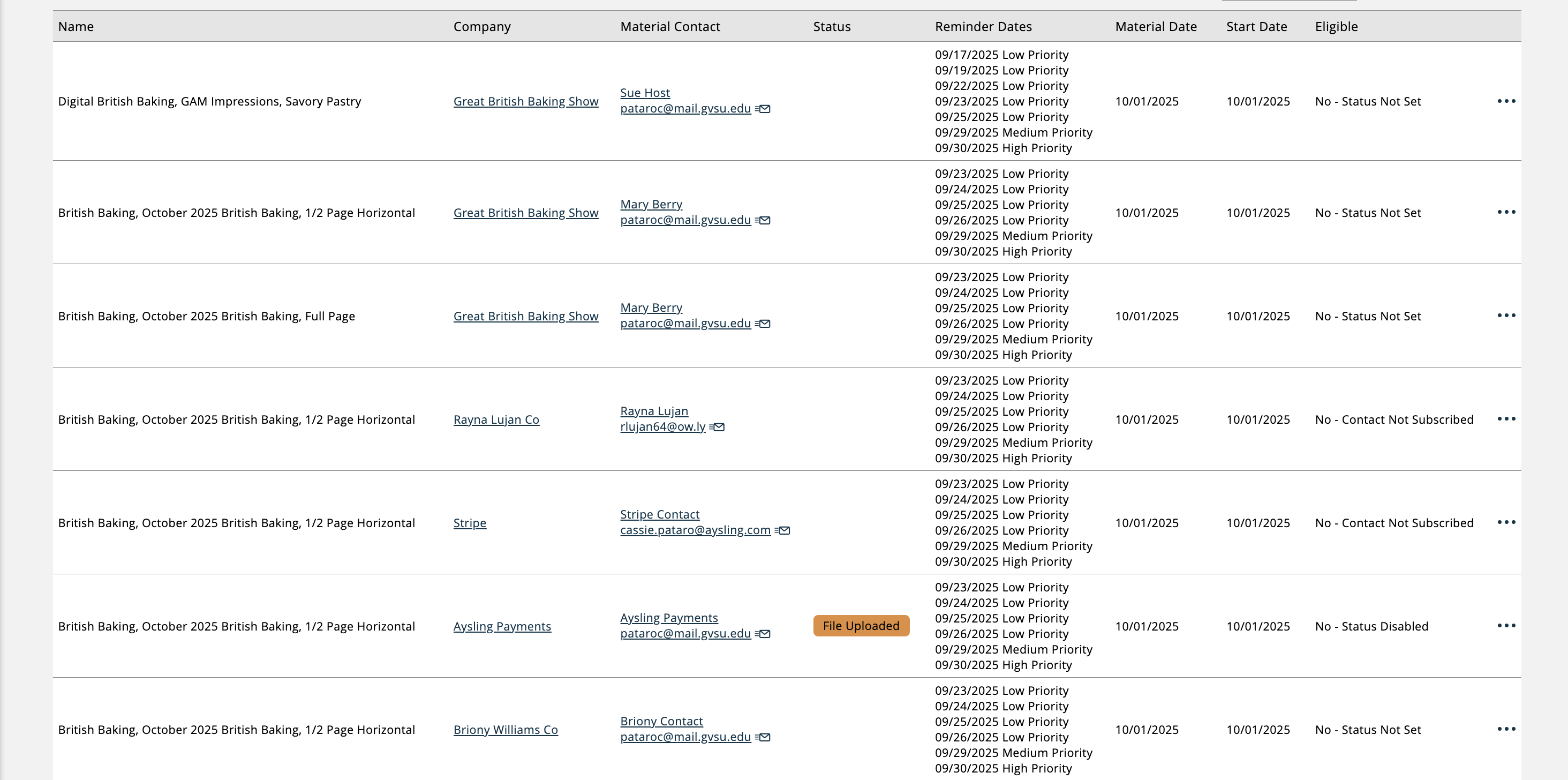
Contacts
Various contact details display in the results, depending on which display fields you have showing.
Material Contact: This contact is the main artwork reminder recipient for the ticket. Every ticket will have one material contact.
Additional Contacts: These are contacts from the order company for the ticket that are set up to receive artwork reminder emails. When reminders are sent for the ticket, the material contact as well as any additional contacts will receive the email.
Agency Contacts: Similar to Additional Contacts, the Agency Contacts column shows any contacts from the agency associated with the order for the ticket that are set up to receive artwork reminder emails, and are set as 'Additional Agency Contacts' on the advertiser. When reminders are sent for the ticket, the material contact as well as any agency contacts listed here will receive the email.
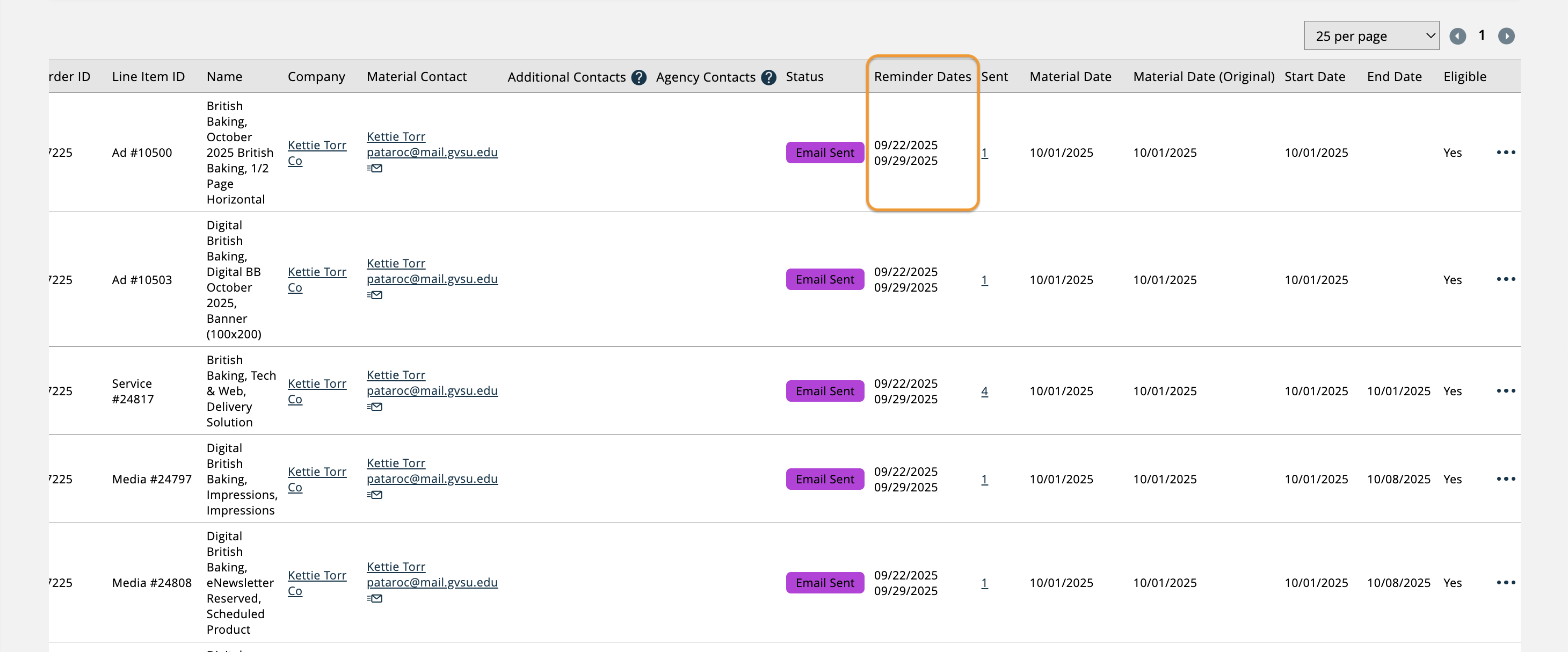
Reminder Dates
This column reflects the date or dates that the ticket is scheduled to send reminders on.
The dates that appear here will be influenced by your Reminder Settings. For instance, if you have multiple Artwork Due Reminder Days configured using the Individual reminder model, then you will see multiple dates in this column.
Next to each date, you will see which priority template will be used for the reminder on that date. As an example, if you have three Artwork Due Reminder Days configured, then you will see three dates, one with 'Low Priority', one with 'Medium Priority', and one with 'High Priority'.
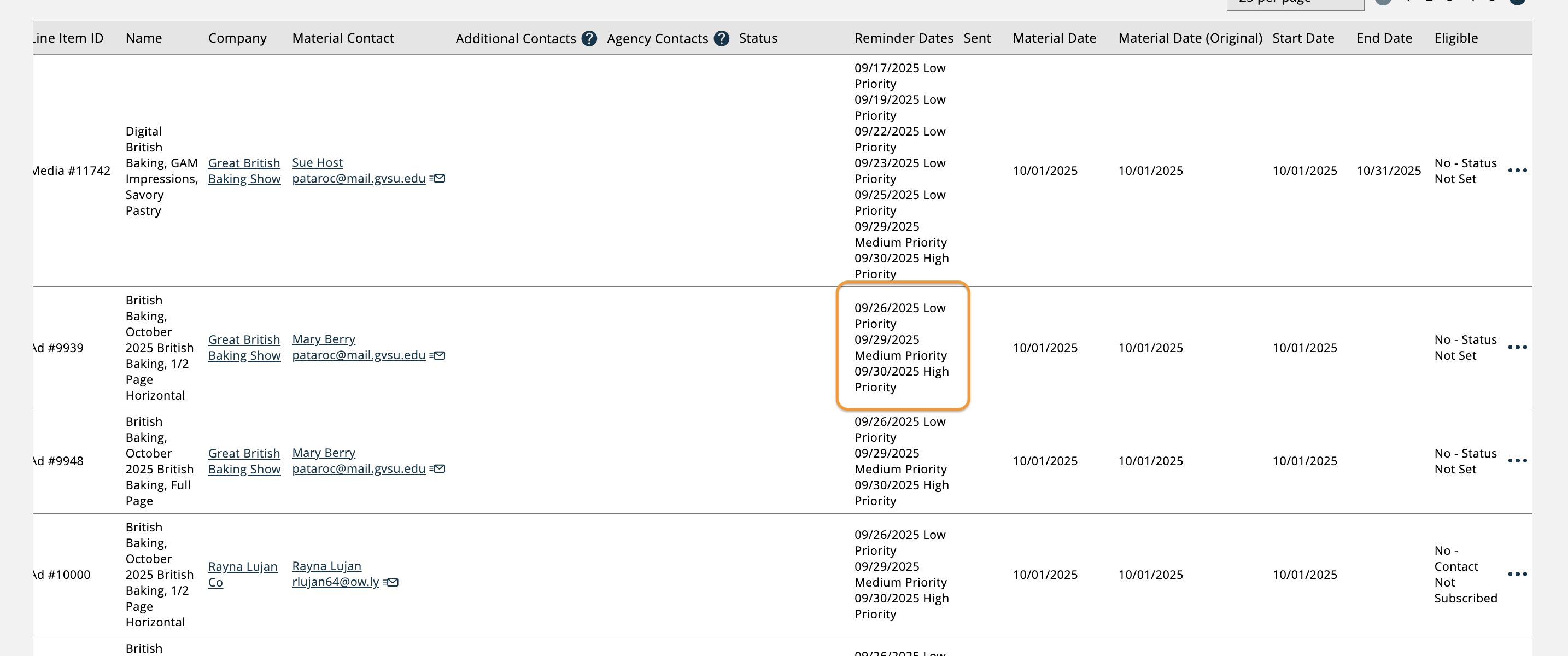
Alternatively, if you are using the Weekly reminder model, then you may or may not see multiple dates in this column depending on your Upcoming Material Days settings. You will not see priority templates names when using the Weekly model.
Eligibility
There are many potential reasons why an artwork reminder email may not be sent. The Eligible column makes it clear if the email will be sent for that ticket.
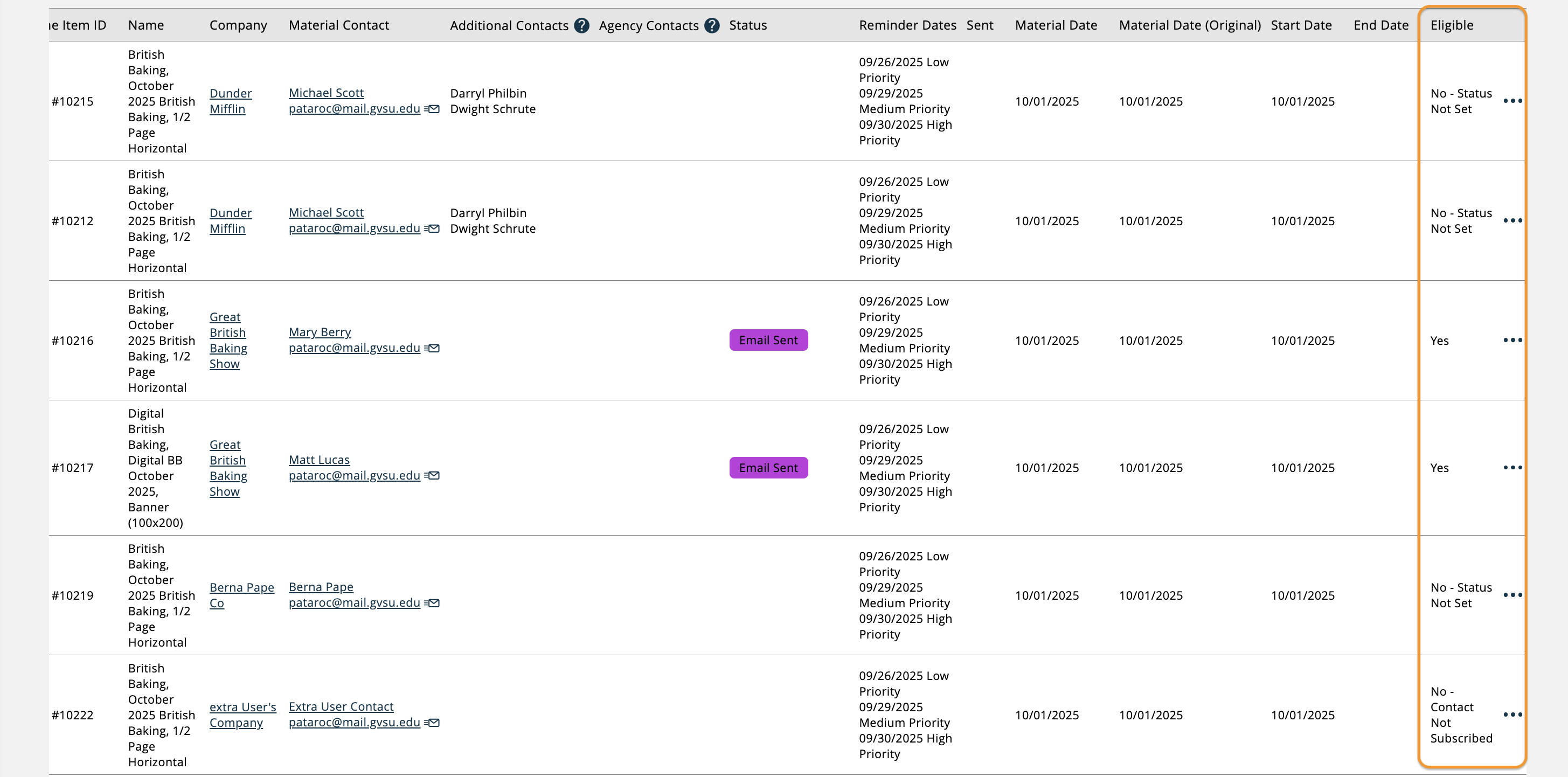
If the ticket is not eligible to send reminders for any reason, the reason will also be reflected here.
Some examples of why a ticket may not be eligible to send the reminder email include the contact not being subscribed to automated emails, or the status the ticket is set to has automated reminders disabled.
Depending on your User Permissions, by using the ellipses button on the right side of the table, you can perform various actions.
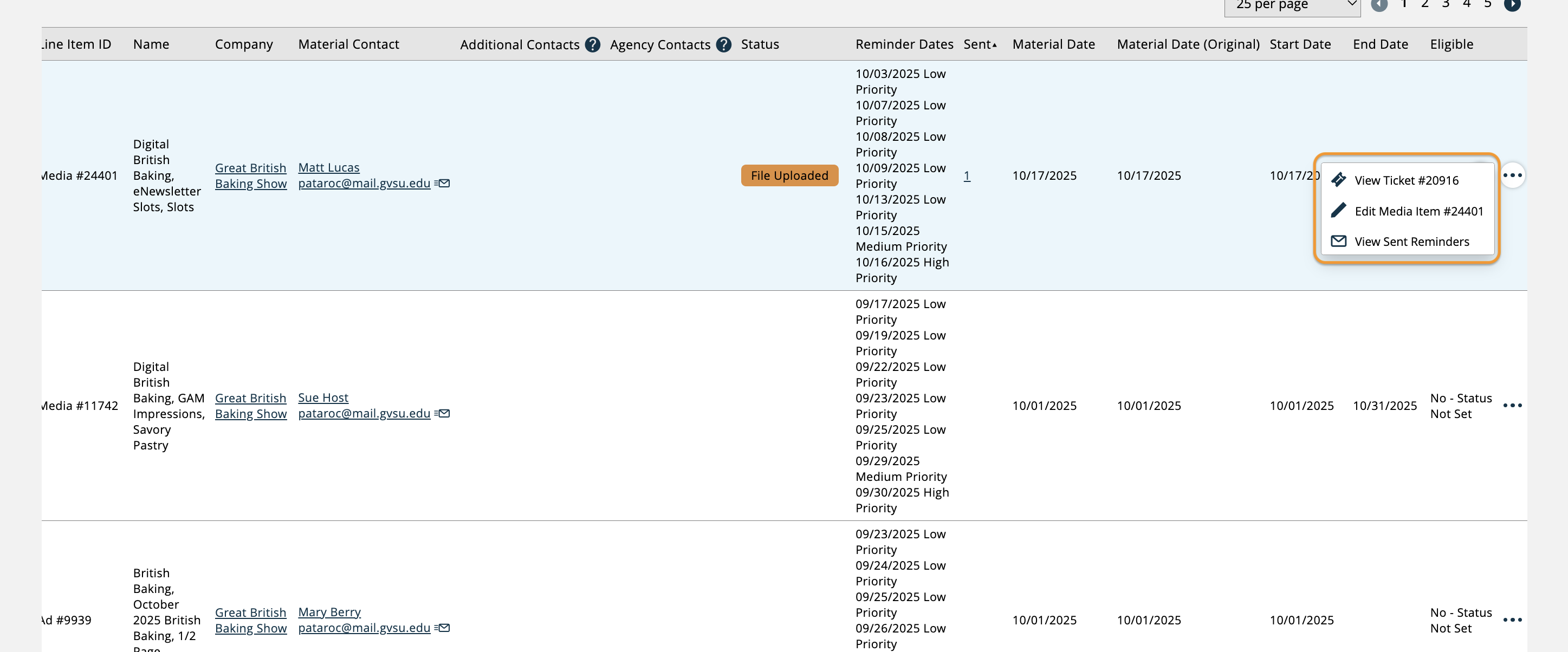
The View Ticket action will open the ticket page in the system so you can view additional details about the item.
The Edit Item action opens the edit line item popup where changes can be made to the line item if needed.
And lastly, if reminder emails have been sent for the item, you can link to the Sent Emails page to view all of the sent reminders for that ticket.
The Reminder Settings button in the upper right corner of the page can also be clicked on to navigate to the page where you can configure the settings for your reminder emails.
Updated 11/7/2025