Astro Agent - Coming Soon
Astro Agent is your AI-powered assistant inside Ad Orbit. Chat naturally to look up contacts, find companies, and create activities - all without leaving the platform.
Astro Agent is a conversational AI assistant built directly into Ad Orbit. Instead of navigating menus to find a contact or log an activity, you simply type what you need in plain language and Astro handles it for you.
Conversational Interaction: Ask questions and give instructions in plain language. Astro understands natural phrasing and context.
Contact & Company Lookup: Search your database for contacts and companies by name, ID, email address, or address instantly, without leaving your current screen.
Activity Creation: Ask Astro to create to-do activities on your behalf. Review the details before confirming.
Sales Analytics: Ask Astro natural-language questions about your sales data — revenue, pipeline, publishers, advertisers, and more. Astro queries your data warehouse and returns a summary with preview results.
External MCP Client Access: Connect to Ad Orbit’s Astro MCP server from external AI tools and clients (such as Claude custom connectors) using OAuth authentication.
Open the Astro Agent chat
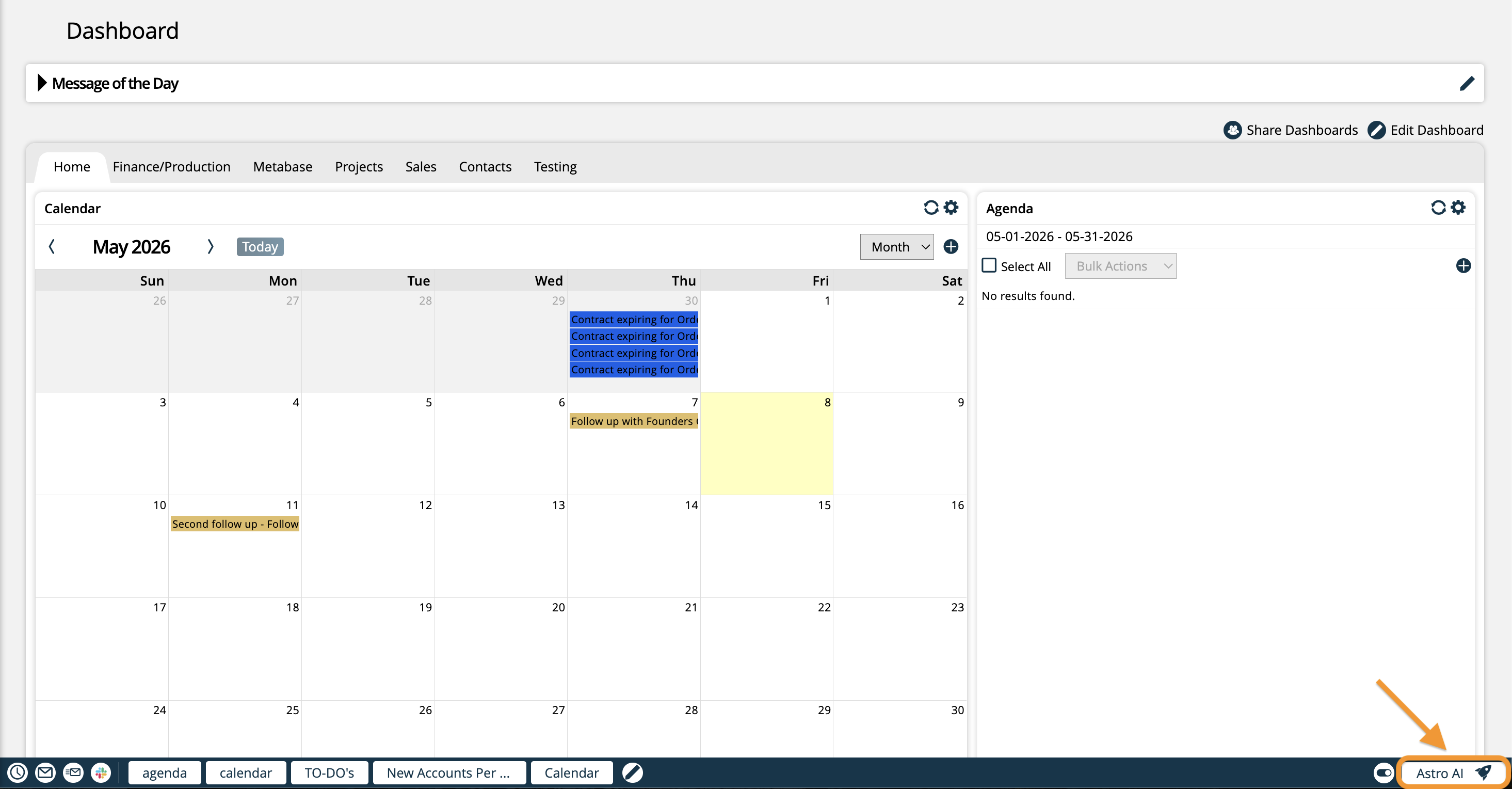
Locate the Astro AI icon in the dock and click on it to open the chat popup.
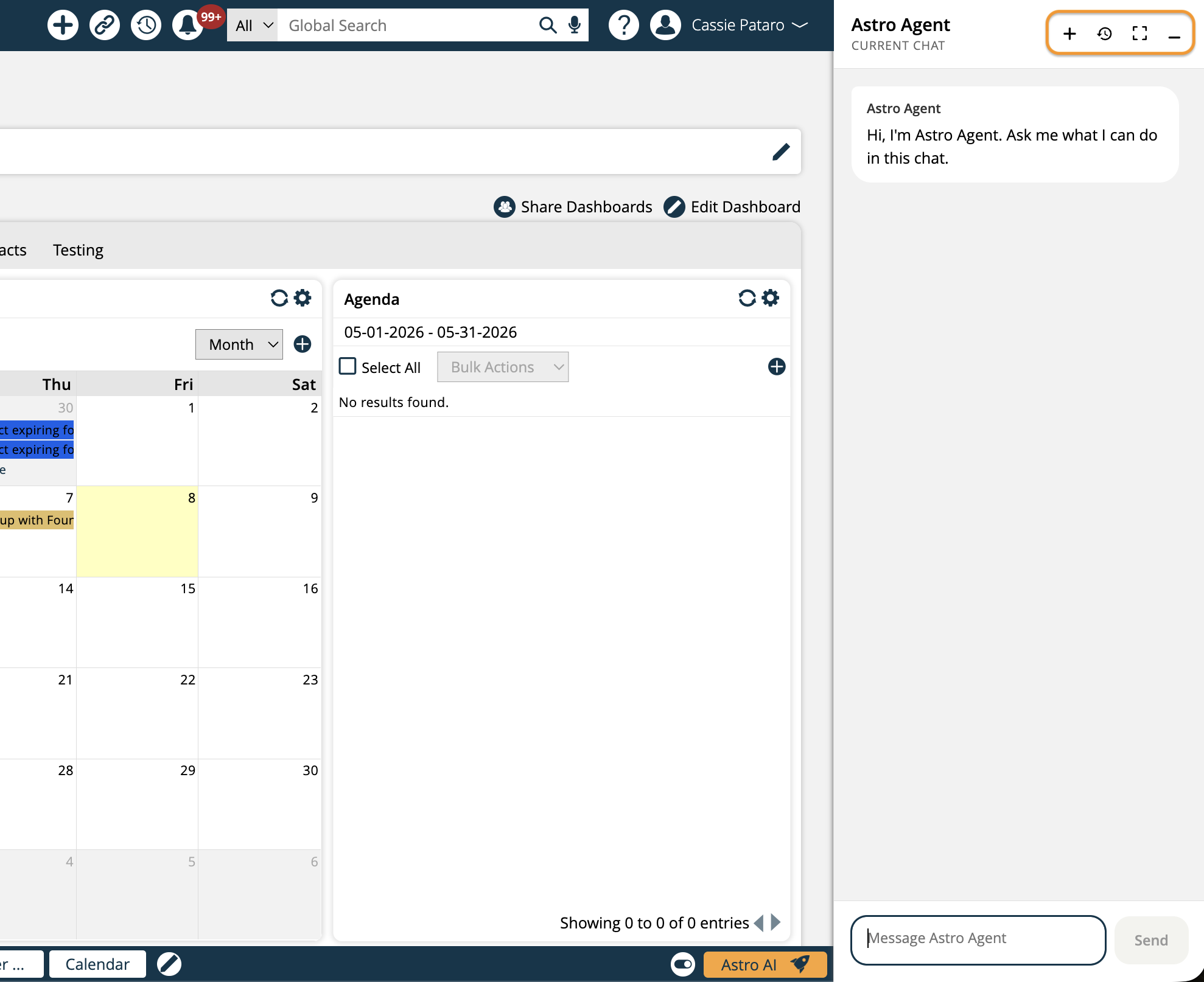
Create a new chat by using the plus icon, view your past chats by using the clock icon, enter full-screen mode by clicking on the square icon, and minimize the chat by clicking on the minus icon.
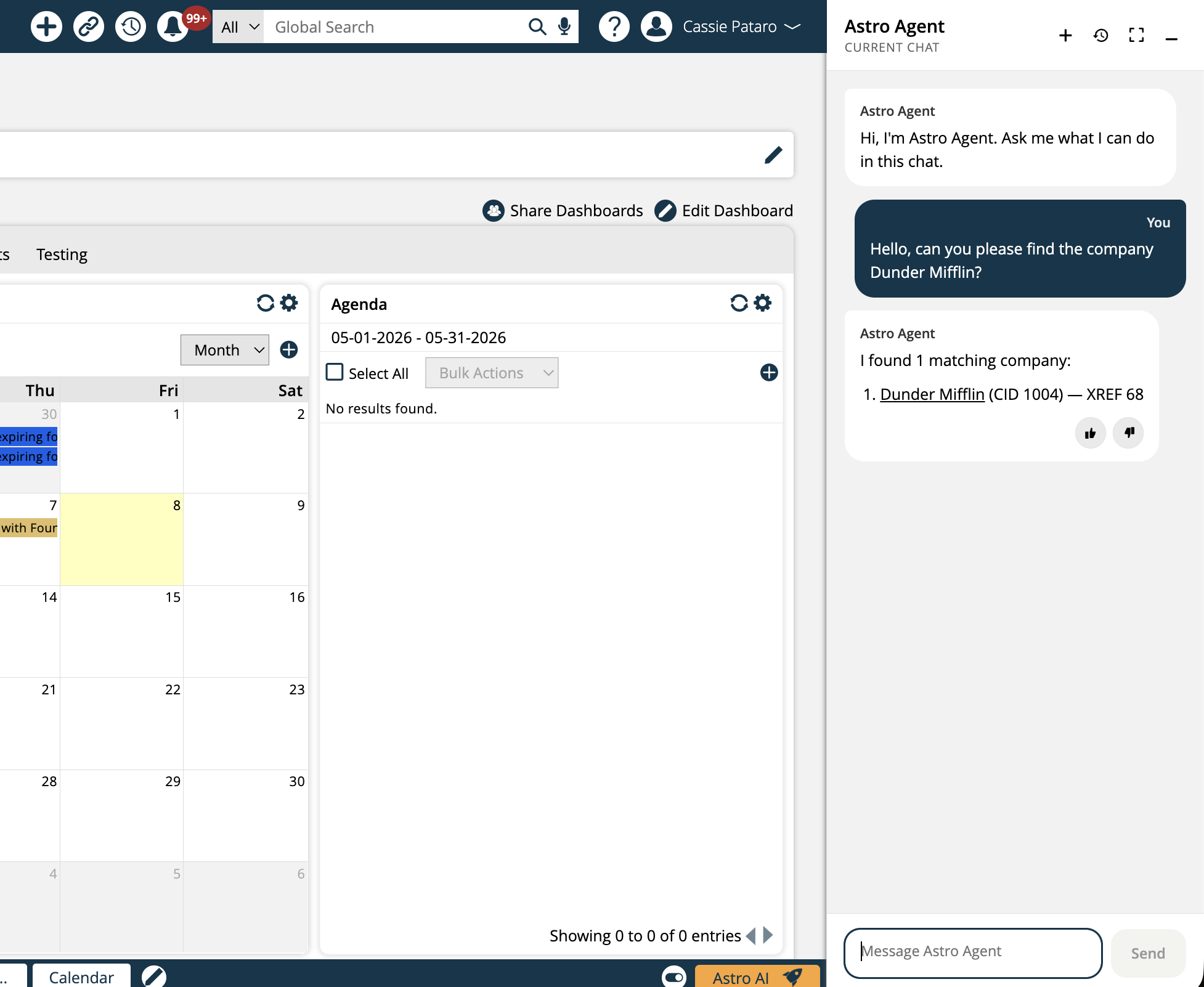
Type your request in plain language
You don't need special commands. Simply describe what you want. For example, "Find the contact Jane Smith" or "Create a to-do for Acme Corp."
Review Astro's response
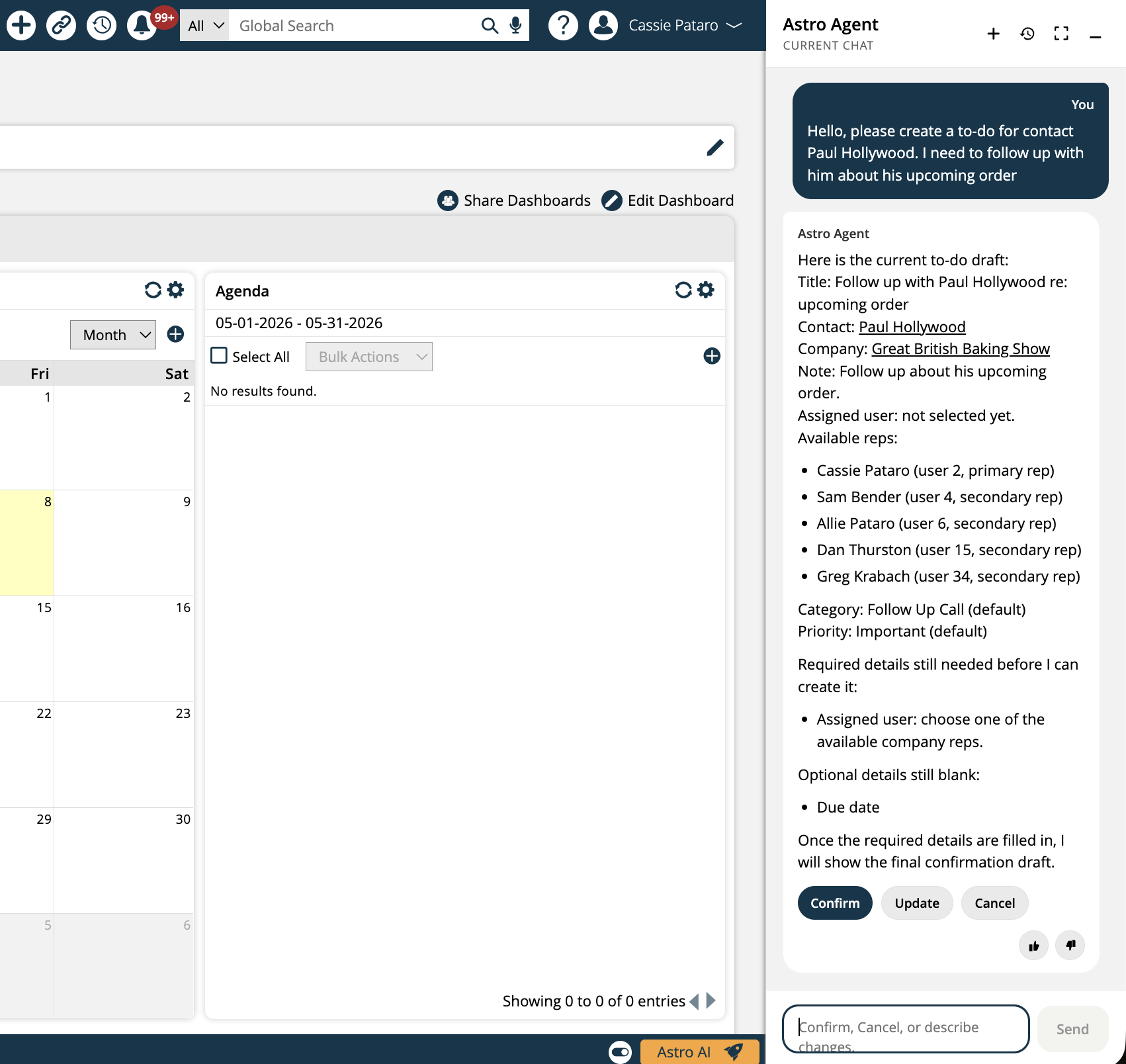
Astro will display results or a draft to-do card. Read through the details to confirm they're correct.
Confirm or refine
When creating an activity, Astro shows a confirmation card with the details it has gathered. Click Confirm to save, or type additional instructions to adjust the details before confirming. Click Cancel to discard.
Provide feedback
Use the thumbs up / thumbs down icons on any Astro response to let us know how it did. Your feedback helps us improve Astro over time.
The items below outline the actions currently available in Astro Agent.
Find a Contact: Search your contacts database by first name, last name, or full name, as well as phone number, email address, or street address.
Note
At this point in time, looking up contacts using their street address should return results reliably. Searching by city, state, country, or postal code may not return the correct results.
Find a Company: Search for companies by their name, ID, or XREF.
Create a To-Do Activity: Ask Astro to create a to-do activity, linked to a contact or company. Astro will present a draft for you to confirm before saving.
Note
Astro Agent currently supports creating new activities. Editing or updating existing activities from a previous session is not currently supported, but is planned for a future release.
Review Results in Conversation: Continue the conversation to ask follow-up questions or refine results within the same chat thread.
Query Sales Analytics: Ask Astro natural-language questions about your sales data. Astro can answer questions about revenue, pipeline, publishers, publications, and advertisers. Results include a summary, column definitions, and a preview of matching rows. This capability requires the appropriate data warehouse permissions; if you do not have access, Astro will let you know explicitly.
Note
The Query Sales Analytics capability requires the reports DataWarehouse access or Analytics Sales Reports permission. If Astro indicates you do not have permission to run analytics queries, contact your system administrator.
Not sure where to start? Here are some phrases you can type directly into Astro Agent:
Find the contact John Doe
Look up the company Acme Corporation
Search for contacts at 123 Main Street
Create a to-do for Jane Smith at Acme Corp — follow up on contract renewal
What can you help me with?
What was our total revenue last quarter?
Show me open pipeline by advertiser for this month
Which publications had the highest revenue last year?
Be specific with names. When searching for a contact or company, providing the full name returns more accurate results than partial names or abbreviations.
Use street addresses for contact searches. Searching by a contact's street address works reliably. Searching by city or state alone may not return results in all cases.
One action at a time works best. Astro performs best when given a clear, single request. If you need to do multiple things, complete one at a time before starting the next.
Always review activity drafts before confirming. When creating a to-do, check the details Astro proposes — particularly the assigned user, due date, and category — and provide any corrections before clicking Confirm.
Use the feedback buttons. If Astro misunderstands your request or returns unexpected results, click the thumbs down icon. This helps us improve the experience for everyone.
Try rephrasing if Astro seems stuck. Like any AI assistant, Astro may occasionally misinterpret an unusual phrasing. Try expressing your request differently and it will usually understand.
Ask analytics questions in plain language. You do not need to know column names or SQL. Simply describe what you want to know, such as “Show me revenue by advertiser this year,” and Astro will handle the rest.
Astro Agent respects your existing Ad Orbit permissions. If you do not have access to a particular contact, company, or activity, Astro will not be able to retrieve or create it on your behalf — the same rules that apply throughout the platform apply to Astro.
If Astro tells you it is unable to complete an action, it may be because the record you are looking for falls outside your current access level. Contact your system administrator if you believe you need additional permissions.
The Sales Analytics capability is governed by the same permission model. Astro will return an explicit permission-denial message rather than an empty result if you do not have access to analytics data. Contact your system administrator to request the appropriate permissions.
Ad Orbit’s Astro MCP server supports connections from external AI tools and clients using OAuth 2.0 with PKCE. This allows platforms such as Claude (via custom connectors) to authenticate against Ad Orbit and use Astro’s capabilities — including contact and company lookup, activity creation, and sales analytics — from outside the Ad Orbit interface.
Prerequisites
A Public OAuth app configured in Ad Orbit under Settings > Integrations > OAuth. When connecting from Claude, the OAuth app must use https://claude.ai/api/mcp/auth_callback as its Redirect URI.
Setting Up a Claude Custom Connector
Create a Public OAuth app in Ad Orbit under Settings > Integrations > OAuth. Note the generated Client ID.
In Claude, go to Customizations and create a new Custom Connector. Enter your MCP endpoint URL (for example, mcp.adorbit.com/mcp/) and the Client ID.
Click Connect. You will be directed to the Ad Orbit global login screen. Sign in with your Ad Orbit credentials.
Select your Ad Orbit instance from the list of available instances associated with your email address.
Review and authorize the connection on the Ad Orbit authorization screen.
Once authorized, Claude can use the connector to access Astro Agent’s capabilities directly from Claude.
Note
This connection is cloud-to-cloud. Ad Orbit’s MCP server is hosted and managed by Aysling — no infrastructure setup is required on your end. When you connect an external client such as Claude, the authentication and data exchange happen between that client’s cloud and Ad Orbit’s servers directly.
Updated 6/4/2026