Webhooks for Contacts and Companies
Ad Orbit supports outbound webhooks for Contact and Company events. When a contact or company is created or updated in Ad Orbit, a JSON payload is automatically delivered to a URL of your choosing — enabling seamless, real-time integration with your CRM, marketing automation tools, or any other platform.
One or more webhook endpoints can be configured in AdOrbit. Each webhook specifies the event type to listen for and the destination URL to receive the payload. No coding knowledge is required to get started.
First, the Webhooks module must be enabled. This is an internal setting that must be turned on by a member of the Ad Orbit team. Please reach out to your CSM or the support team to enable this feature. Once enabled, you can continue through the rest of the set up process.
To access both the Webhook Setup page, and the Webhook Logs page, you need the User Permission 'Integrations'.
Navigate to Settings > Integrations > Webhooks > Webhook Setup.
Here, click 'Add Webhook' to create your first outbound webhook.
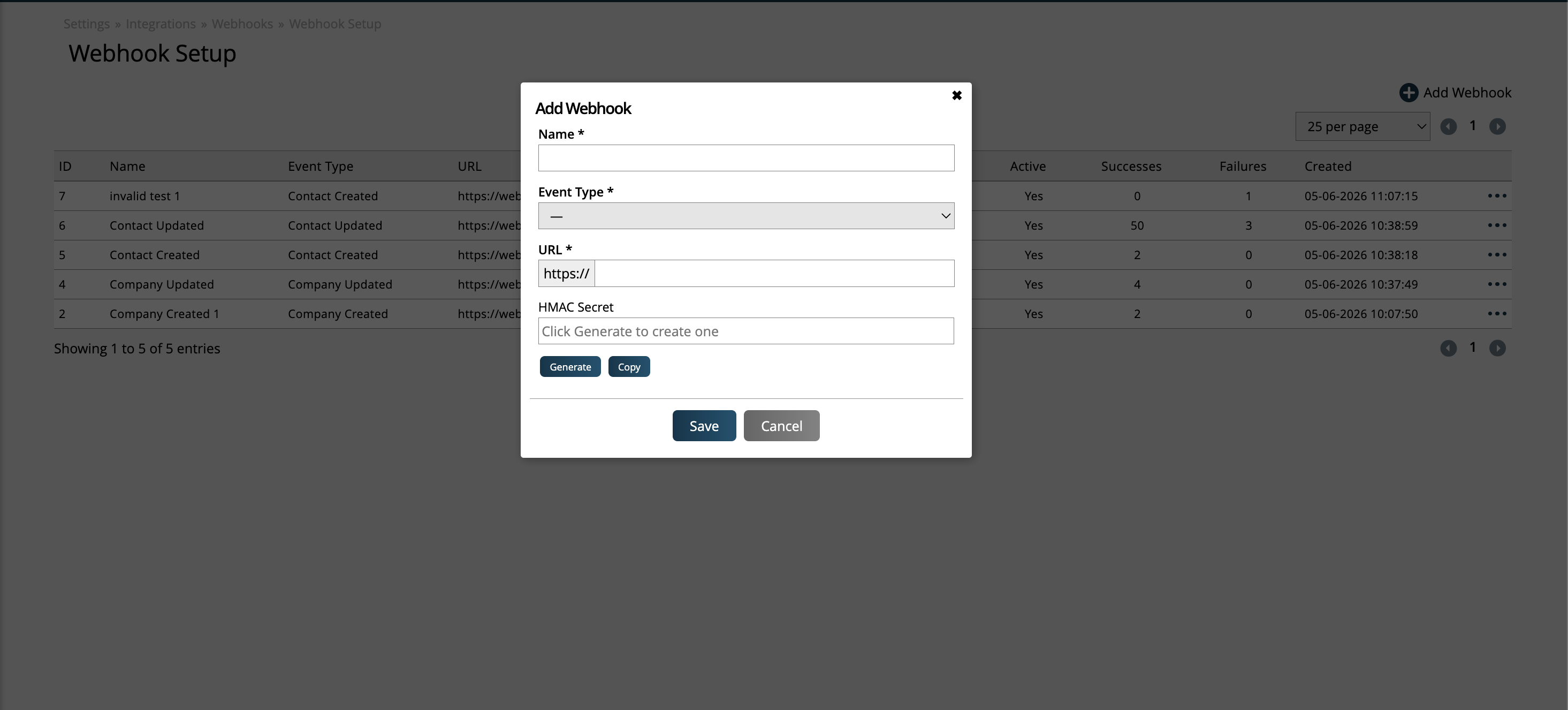
In the popup, enter a name for your webhook, and choose the event type you want to subscribe to.
Supported event types:
Contact Created - Fires when a new contact is added to Ad Orbit.
Contact Updated - Fires when any field on an existing contact is modified.
Contact Qualified - Fires only if the contact meets one of the selected lead statuses. Designed to work in tandem with the Contact Updated webhook: if both are configured, Contact Updated will not fire for events where Contact Qualified fires.
Company Created - Fires when a new company record is created.
Company Updated - Fires when any field on an existing company is modified.
Next, enter the destination URL where Ad Orbit should send the JSON payload.
Finally, optionally configure an HMAC Secret Key to verify the authenticity of incoming requests on your server. You can either automatically generate a key, or manually enter one.
Save your webhook. It will begin firing immediately on the next matching event.
The table on this page shows all webhooks you have created in your site. You can edit, disable or re-enable, or delete each existing webhook.
Tip
On Contact webhooks, you can check the option to include company data. When enabled, updating a contact record will include their associated company's data in the response.
JSON Payload Structure
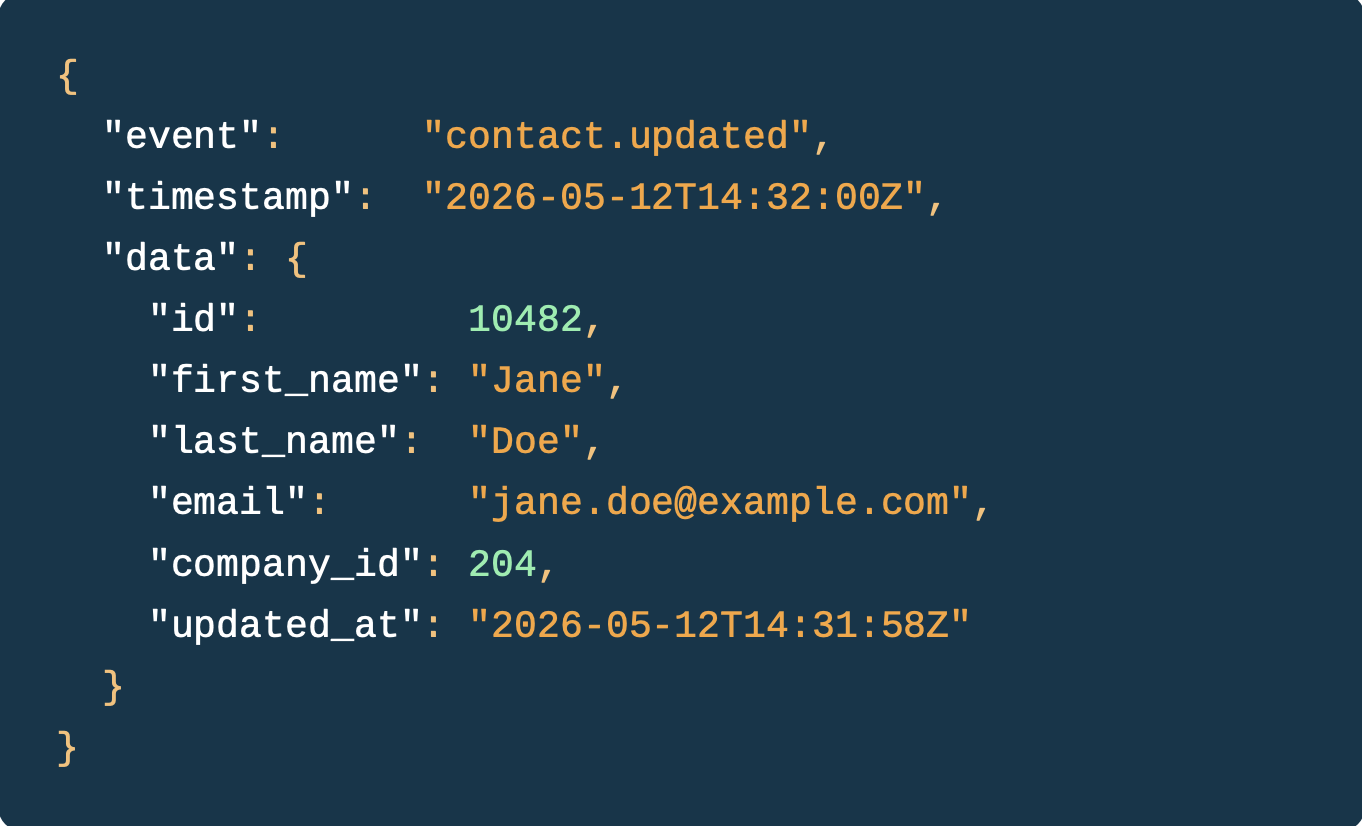
When an event fires, Ad Orbit sends an HTTP POST request to your configured URL with a JSON body containing the relevant record data. Below is an example of the payload structure for a contact event:
Payload Signature Verification (HMAC)
To ensure that webhook requests genuinely originate from Ad Orbit, each outbound request includes a cryptographic signature in a custom HTTP header. The signature is generated using the payload content and your configured HMAC secret key.
How to verify the signature on your server
Read the signature value from the X-AdOrbit-Signature header included with each webhook request.
Using the same HMAC secret key configured in AdOrbit, compute an HMAC-SHA256 hash of the raw request body.
Compare your computed hash to the value in the header. If they match, the request is authentic.
Reject any requests where the signatures do not match.
Automatic Retry on Failure
If your endpoint is temporarily unavailable or returns a non-success response, Ad Orbit will automatically retry delivery. Each webhook event allows up to 3 delivery attempts, with subsequent attempts scheduled after a short delay. You can monitor delivery status and retry history from the Webhook Logs page.
Tip
Bulk updates and rate limiting: When a large number of records are updated simultaneously (for example, via a bulk action), webhook events are queued and processed in batches. Some events maybe delivered slightly after the update occurs. All queued events will be delivered within the retry window.
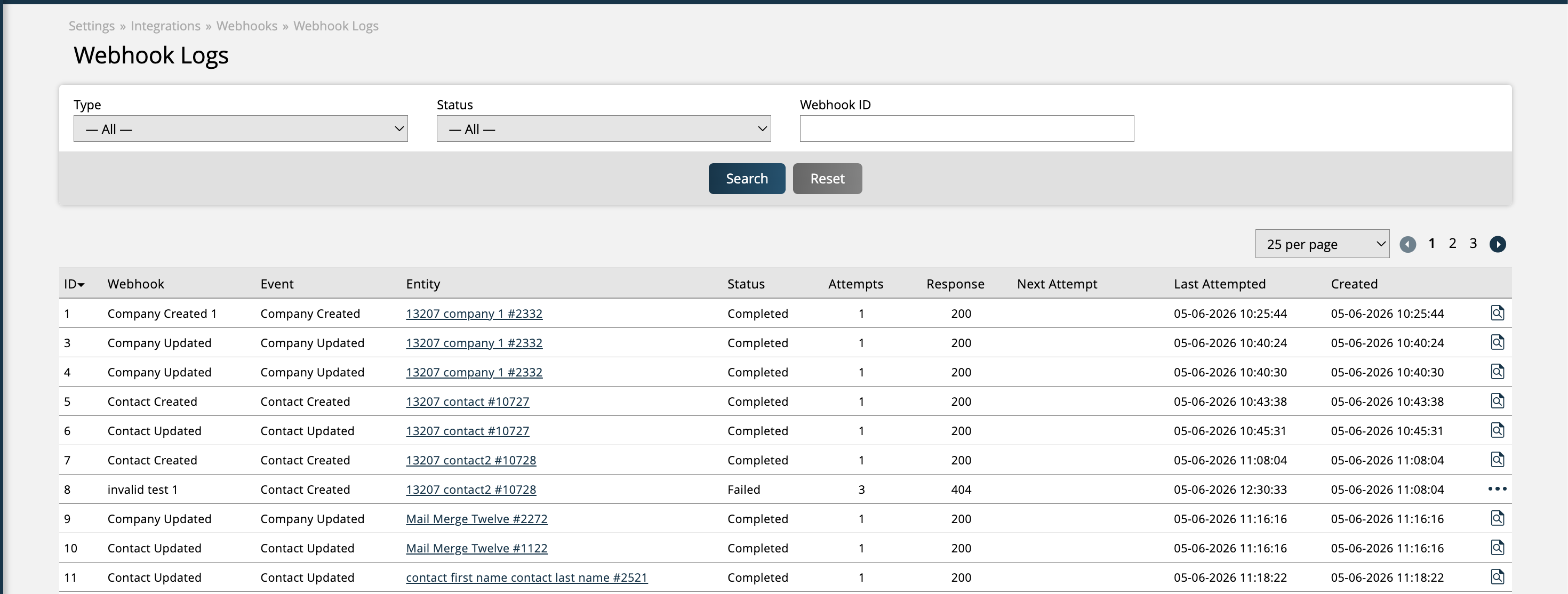
The Webhook Logs page gives you full visibility into every webhook event Ad Orbit has attempted to deliver. It is accessible from Settings > Integrations > Webhooks > Webhook Logs.
What you can see in the logs:
Webhook & Event - The name of the webhook used as well as the event type that triggered the webhook to fire.
Entity - The record within Ad Orbit that was created or updated and prompted the webhook to fire. These records can be clicked on to open the contact or company's page within Ad Orbit.
Status - Whether the attempt succeeded, failed, or is scheduled for a future retry. Common statuses include: Pending, Completed, and Failed.
Canceled - A status indicating that a pending retry was superseded by a newer event for the same entity. When an entity is edited while a previous webhook for that entity is still pending retry, the original webhook is automatically canceled and the new webhook takes over.
Attempt Count - How many delivery attempts have been made for that event, up to the maximum of 3.
Response Code - A numeric code that indicates the status of the response. These may include items such as 200 for a successful response, or 404 for a failed response.
Next Attempt Time - For events pending a retry, this is the scheduled time the next delivery attempt will be made so you know when to expect it.
Last Attempted - The timestamp of the most recent delivery attempt.
Created - The timestamp of when the record initially fired.
Response Details - The HTTP status code and response body returned to your endpoint, useful for diagnosing failures. This can be seen by clicking the magnifying class icon on the record.
How to use Webhook Logs for troubleshooting:
Filter the Webhook Logs page by status to quickly identify problem events.
Click any log entry magnifying class action to expand it and view the full payload that was sent and the response your endpoint returned.
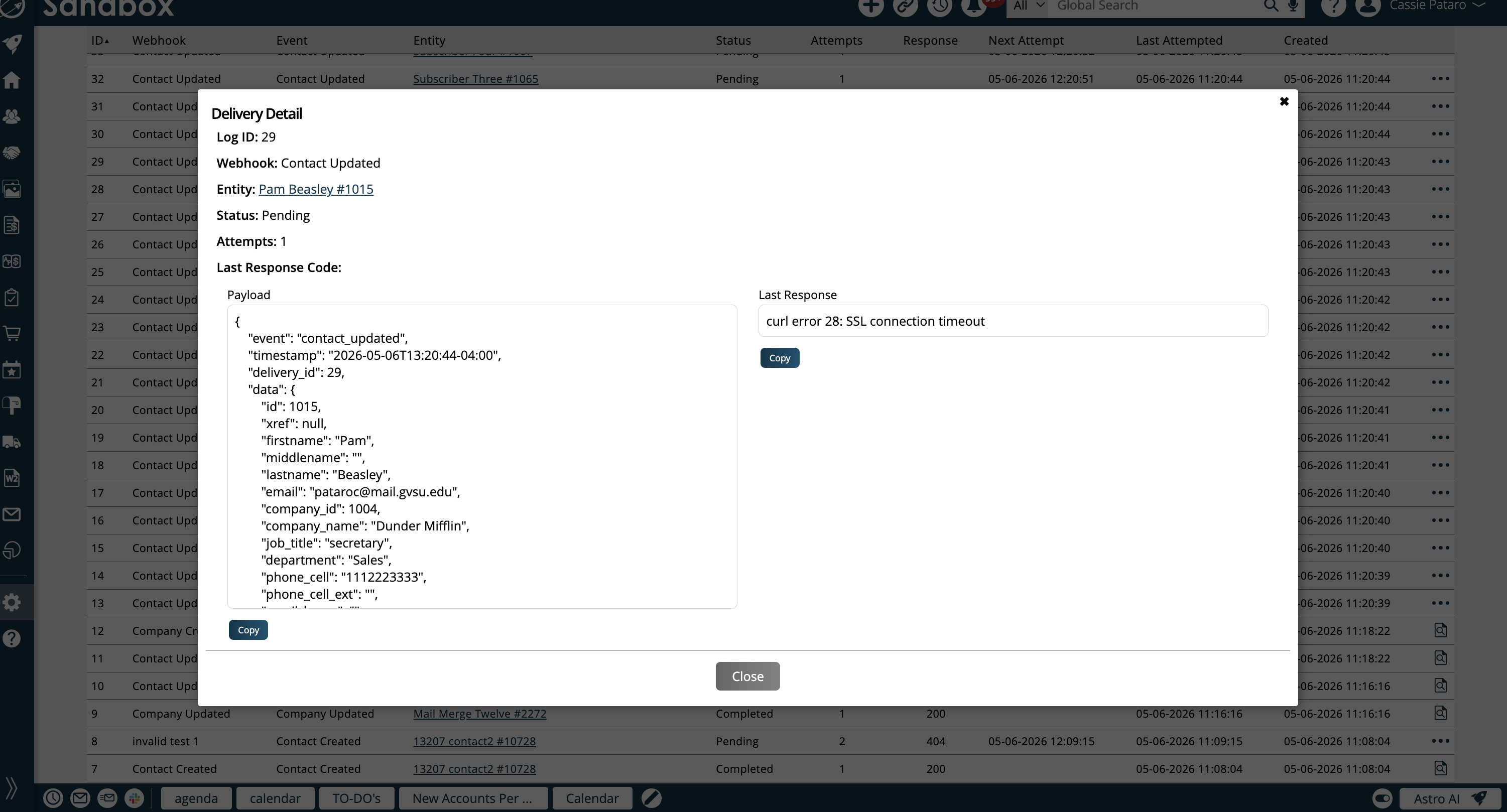
If an event shows Pending or Retry, no action is required. Ad Orbit will reattempt delivery automatically. Ensure your endpoint is available before the next scheduled attempt.
Failed records can also be manually retried by clicking on the Retry action.
If an event shows Failed after all three attempts, review the response details to diagnose the issue (e.g., incorrect URL, server error), and update your webhook configuration if needed.
If an event shows Canceled, the original webhook was superseded by a newer update to the same entity. No action is required - the replacement webhook will deliver the most current data.
Updated 6/4/2026